Your week, in four steps
ASigning up
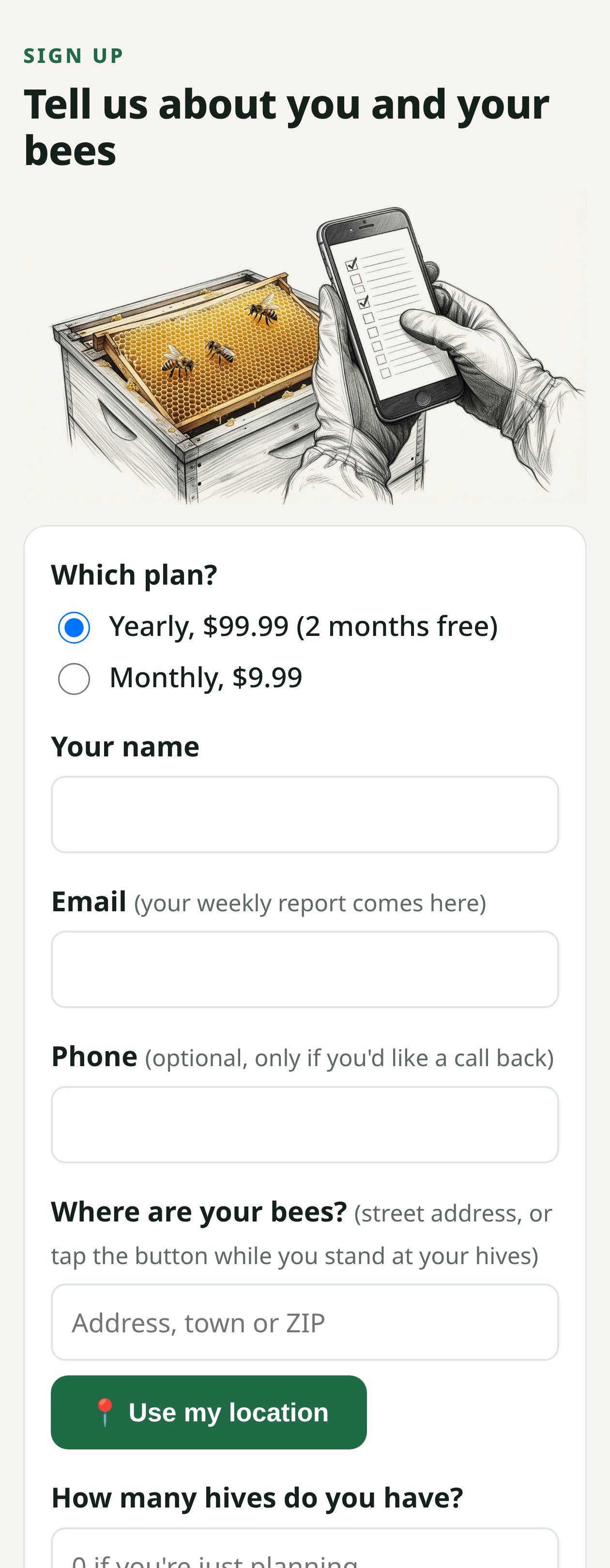
- Go to myforgeguides.com and tap Get Started.
- Read down the page: how it works, the price and ways to pay. The sign-up form is at the bottom.
- Pick Yearly or Monthly.
- Type your name and email. Your report comes to this email, so use one you check. Phone is optional.
- Where are your bees? Type the address, or stand at your hives and tap 📍 Use my location.
- Answer the quick questions: how many hives, what kind, how long you've kept bees, what you'd like help with, and how you'd like to read it.
- Tap Sign me up ▸.
BYour Friday email
Every Friday at 5 AM. It's the key to everything: your own links are in it, so you never need a password.
| In your email | What it does |
|---|---|
| 📰 Your weekly report | Open it to read on your phone or computer, or print it at home. |
| 🟢 "Send in your report from your phone" | Opens your own hive report page (section D). |
| 📈 How Your Hives Are Doing | Opens your hives' year in color (section F). |
| 🎓 Your next lesson | Opens this week's Course Book lesson (section G). |
| ✉️ Email us | Ask a question or send photos (section H). |
| Unsubscribe (at the bottom) | Stops it, one tap (section I). |
CReading your report, page by page
What each page shows, and what to do with it.
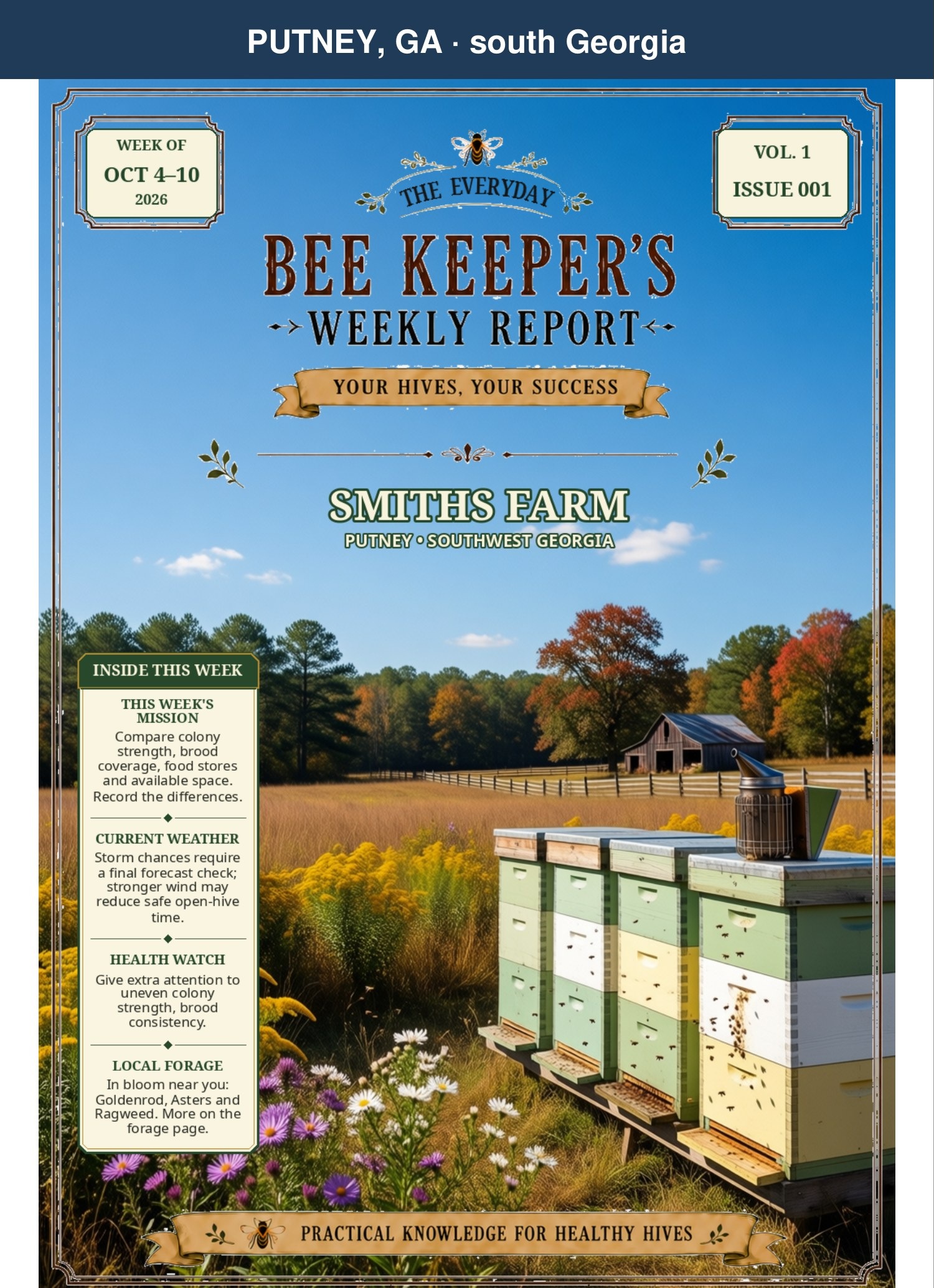
The cover
Shows: your apiary's name and town, the week's dates and issue number.
Inside This Week (the box on the left): this week's mission, the weather, the health watch and what's blooming, in one glance.
Do: read the box first. If you only have a minute, that's the week.
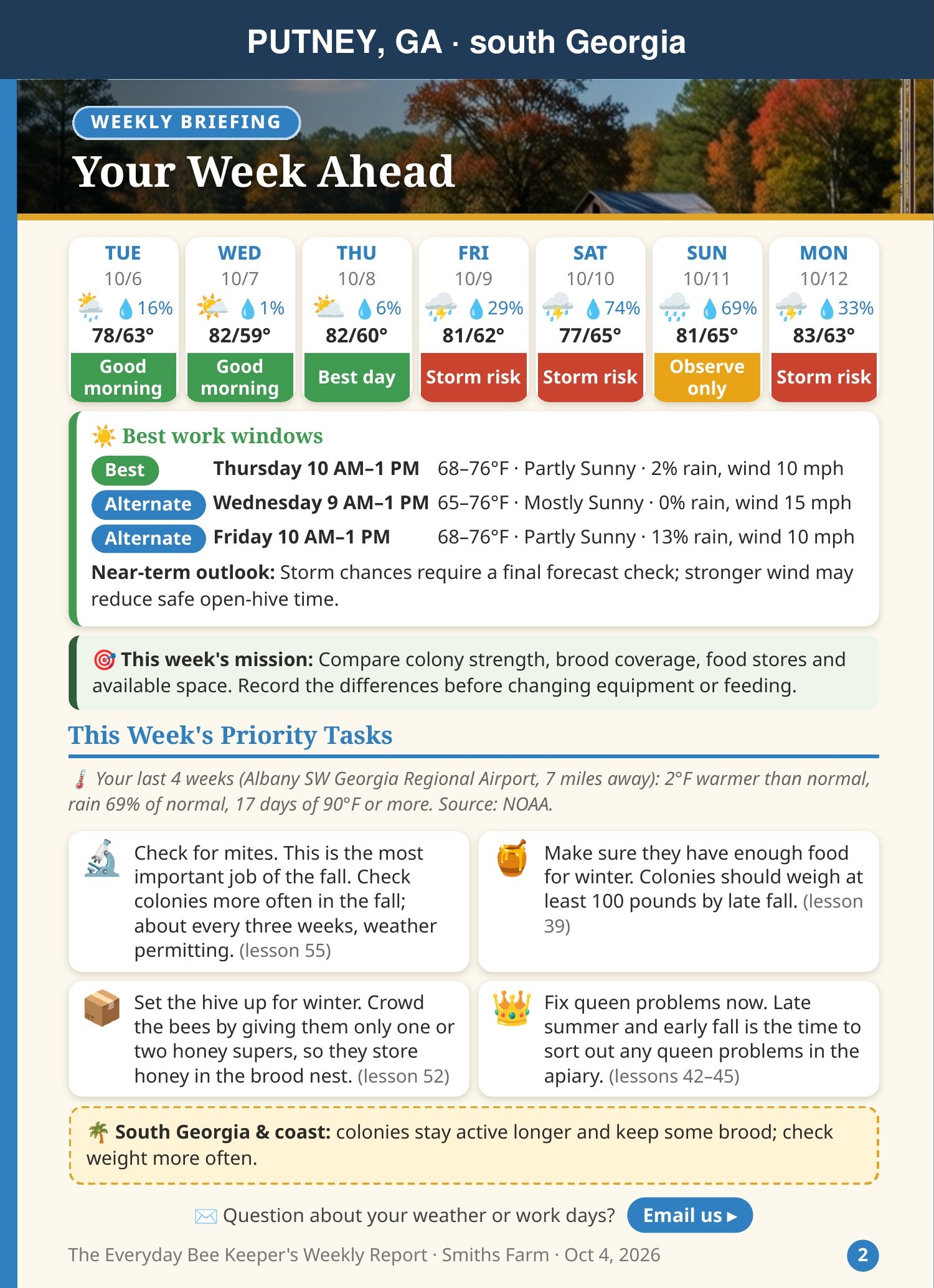
☀️ Your Week Ahead
Shows: your local forecast day by day, the best windows to open your hives, and how the past four weeks compared with normal.
Do: pick your inspection day from the best windows. Avoid cold, windy or rainy hours.
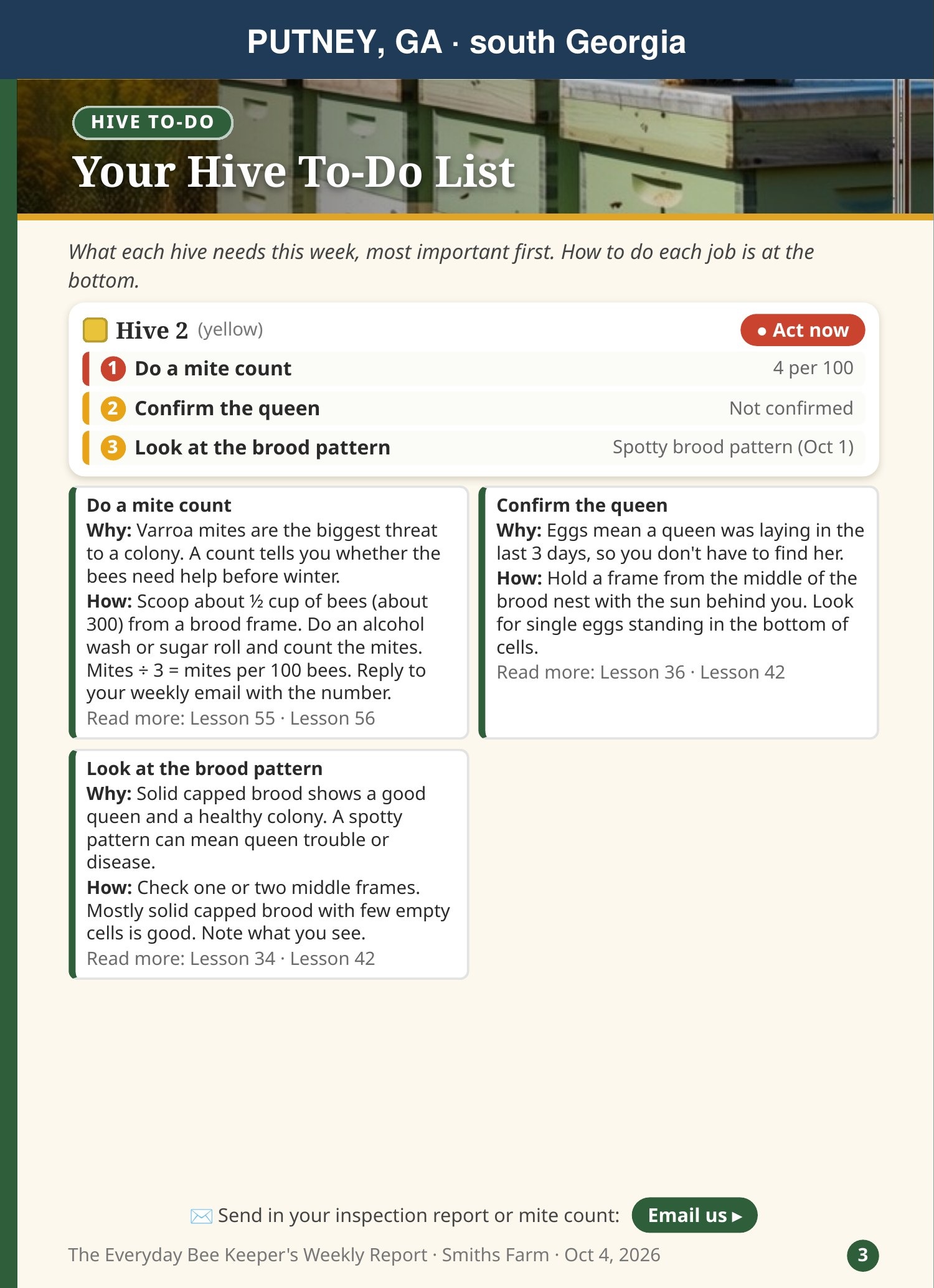
✅ Your Hive To-Do List
Shows: each hive's jobs this week, most important first, with why it matters, how to do it, and the lesson to read.
Do: take this page to the hive. Start at the top of each hive's list. It may run onto a second page.
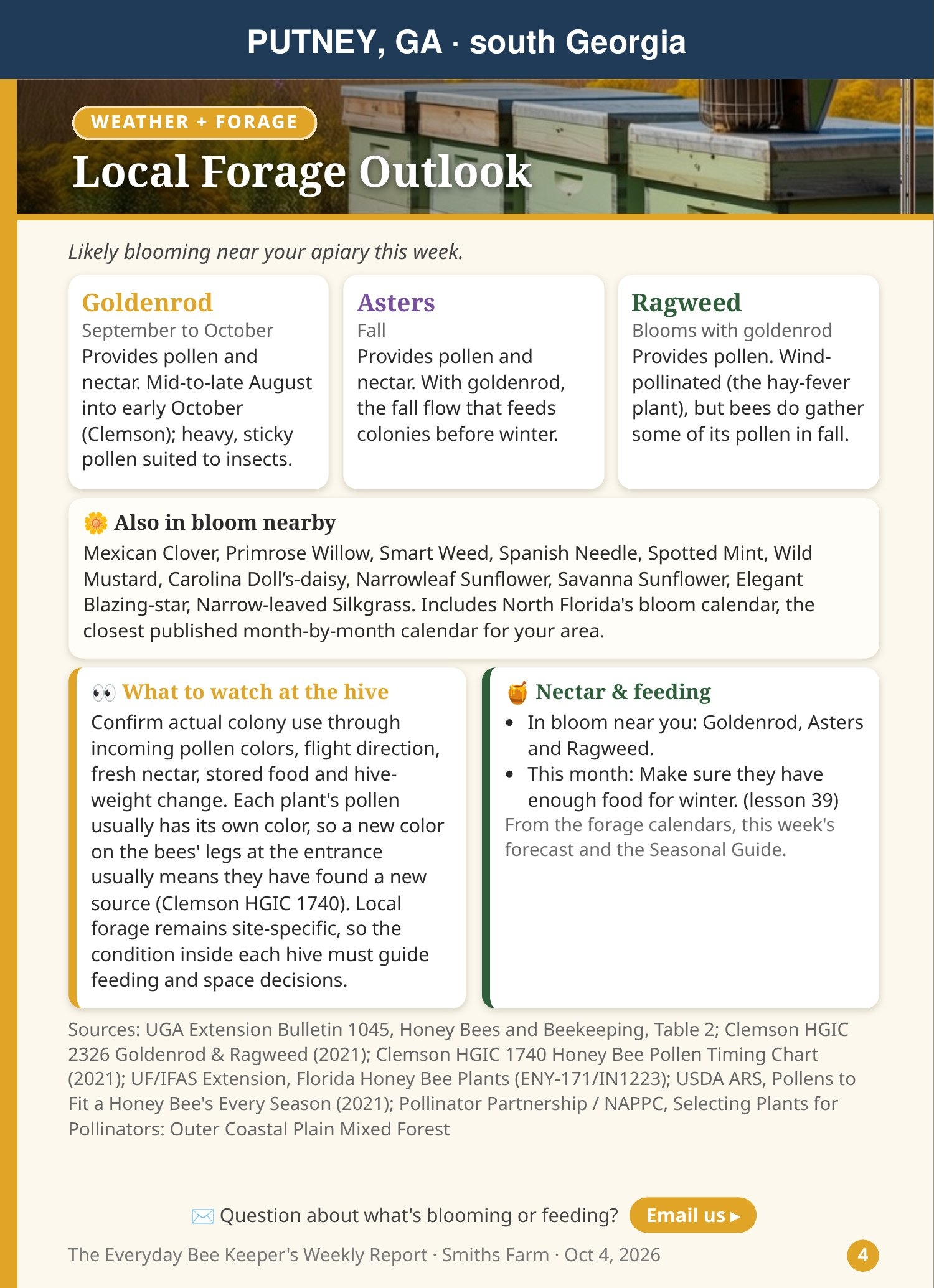
🌼 Local Forage Outlook
Shows: what's blooming near you now, what's coming, and whether the bees are likely to be bringing in nectar and pollen.
Do: use it to judge feeding and space. A strong flow means they may need room; a dearth may mean watching stores and robbing.
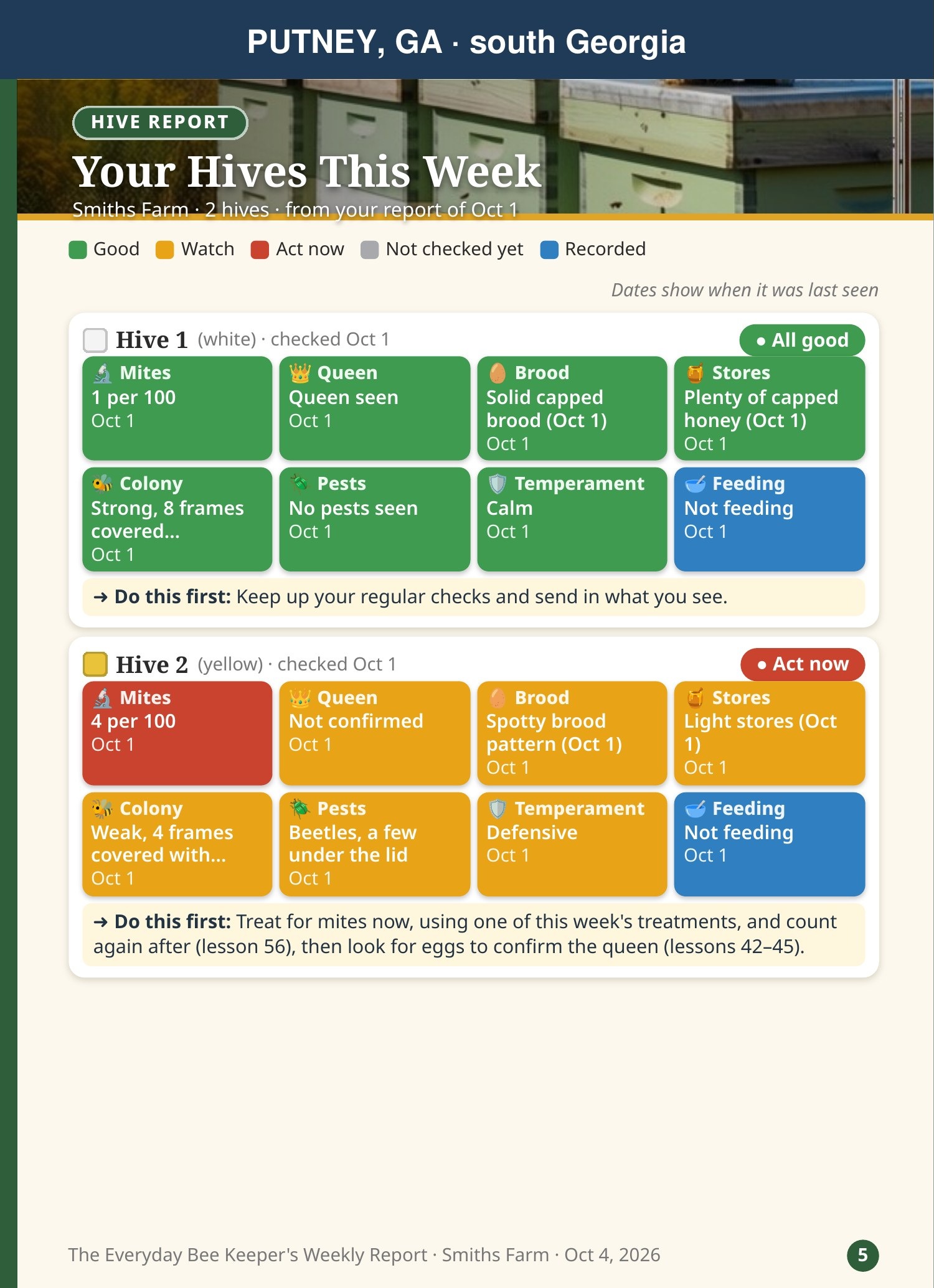
📋 Your Hives This Week
Shows: a color report card for each hive from what you sent: mites, queen, brood, stores and pests, with what to do first. Each hive may have a page or two of detail after it.
Do: look for red and gold boxes first. If a hive's card is empty, we didn't get a report for it this week.
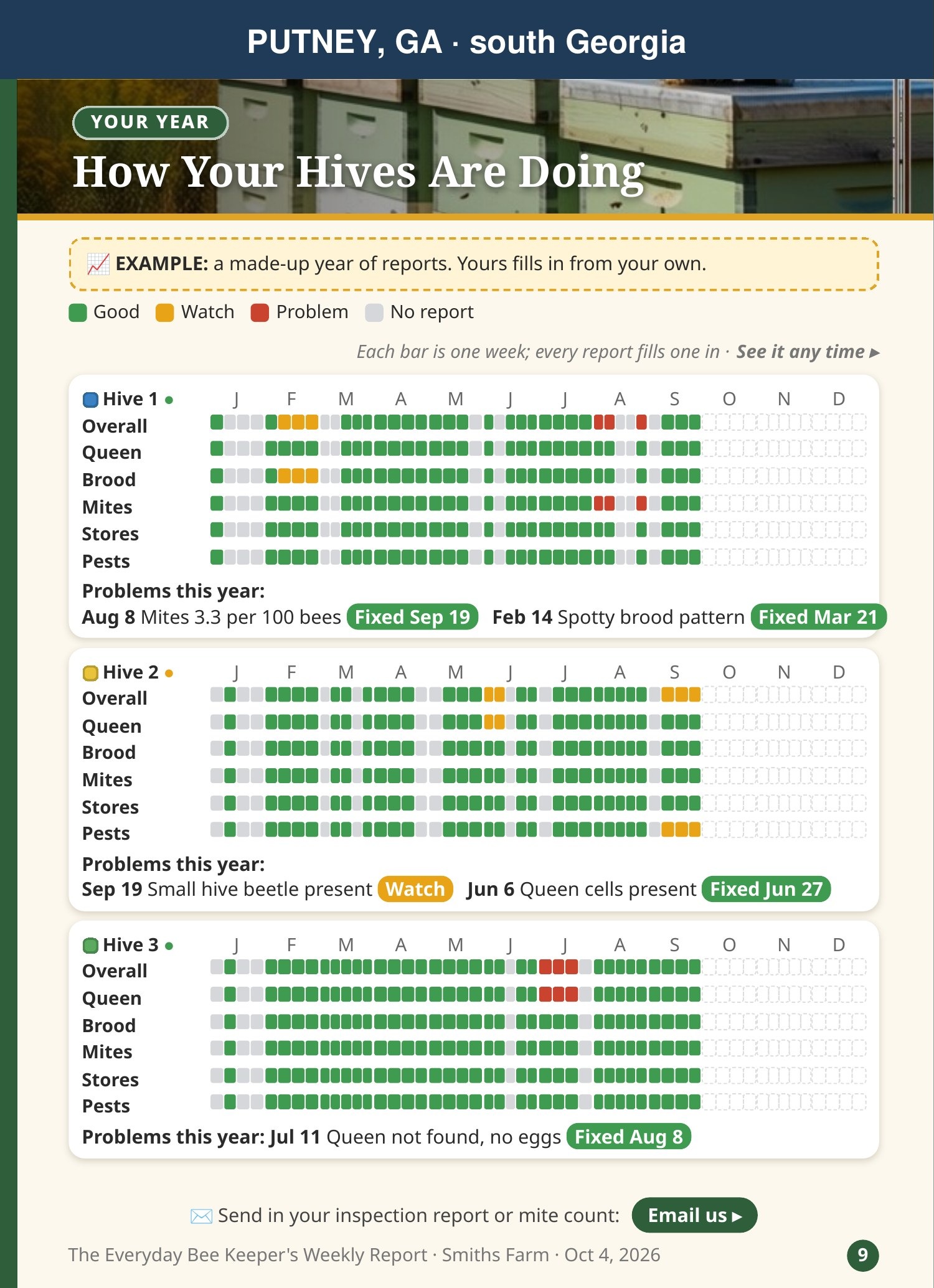
📈 How Your Hives Are Doing
Shows: your whole year, week by week, in color, one row per thing we track. (Once a month in the report; any time on the web, section F.)
Do: look for patterns, like mites creeping up or stores dropping, before they become problems.
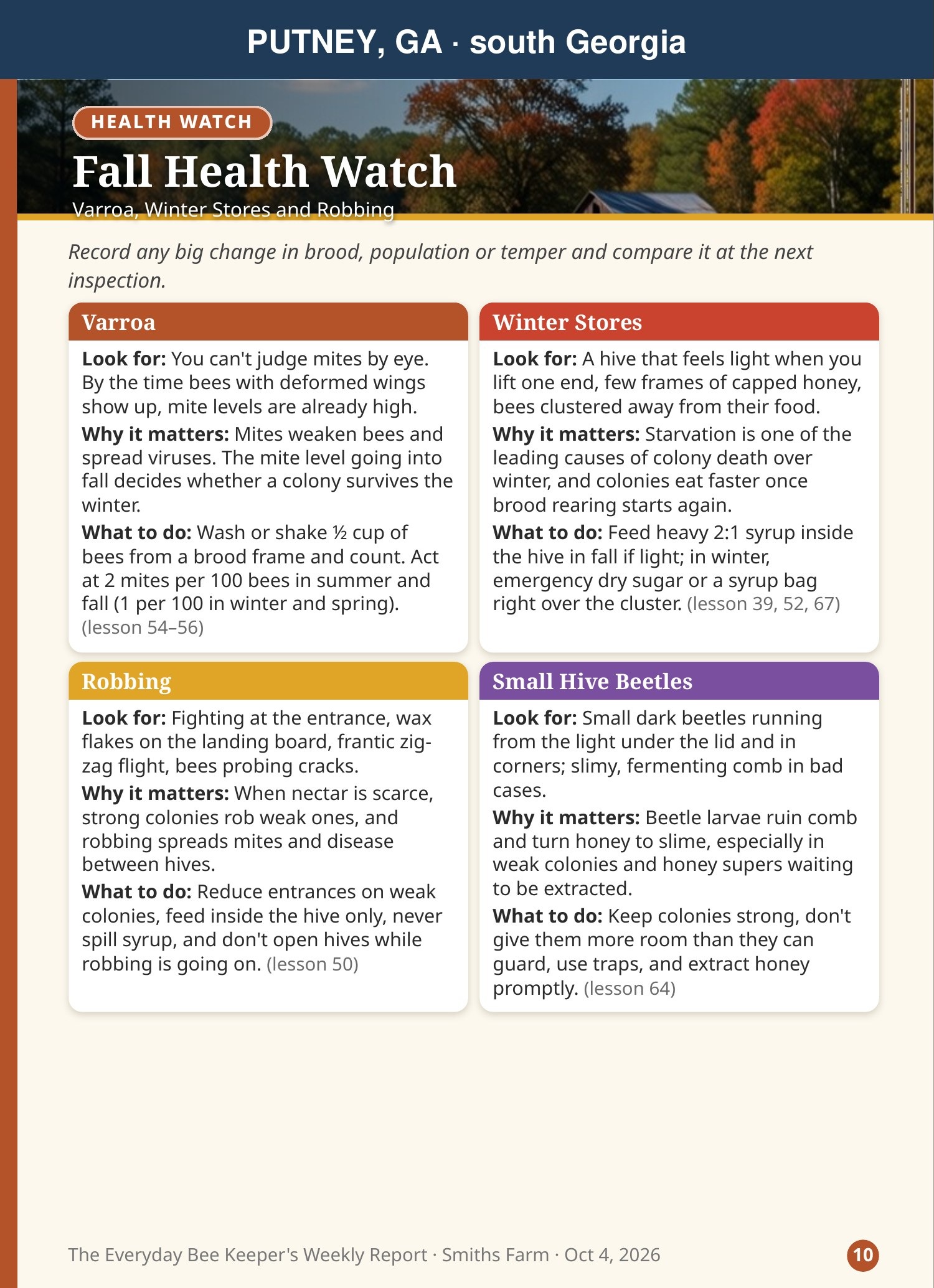
🩺 Health Watch
Shows: what to look for this time of year, why it matters, and what to do if you see it.
Do: keep these in mind during your next inspection.
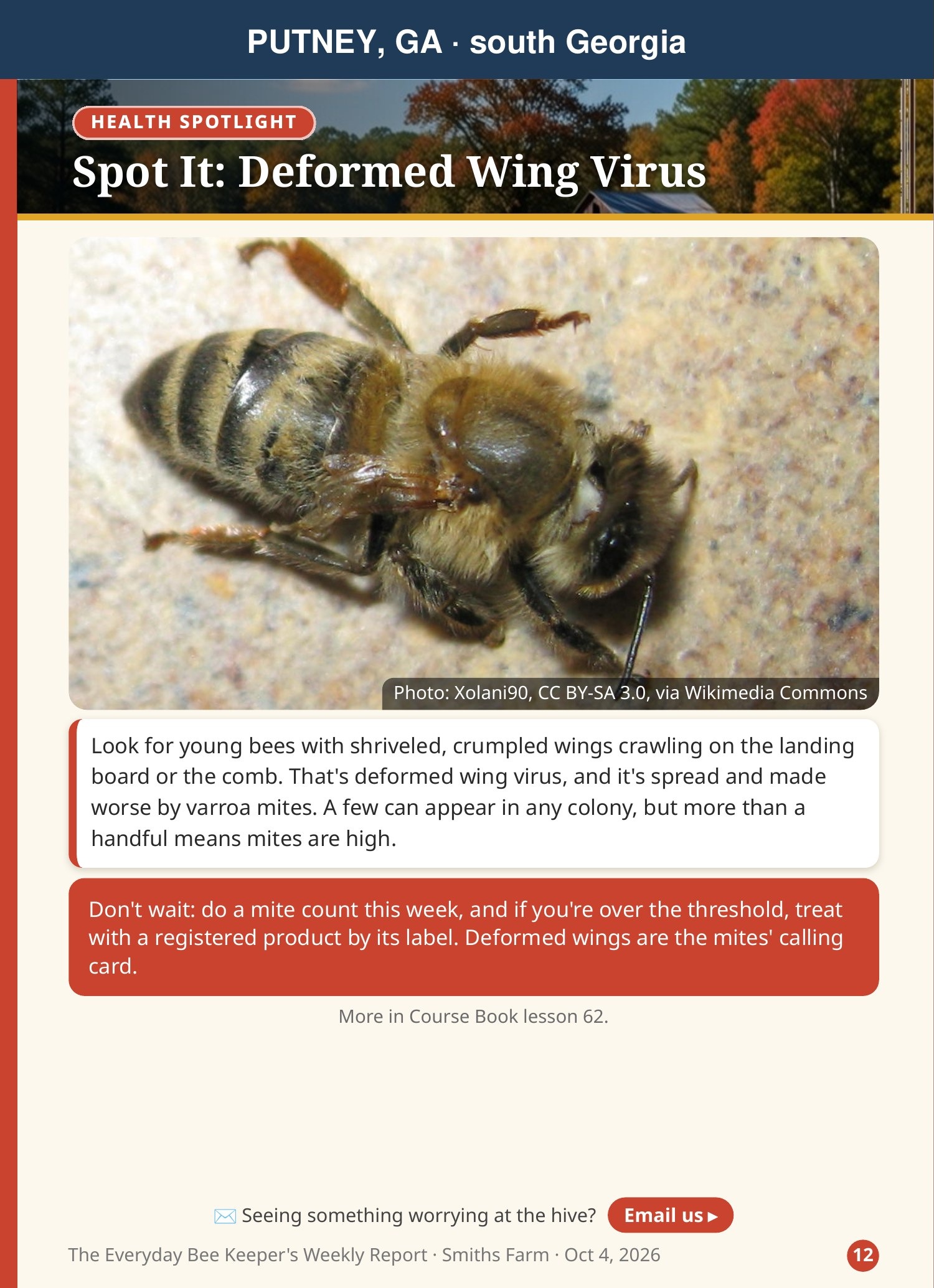
🔍 Spot It / How To
Shows: one problem to learn to recognize (with photos), or one skill step by step, such as a quick mite count.
Do: try the skill at your next inspection.
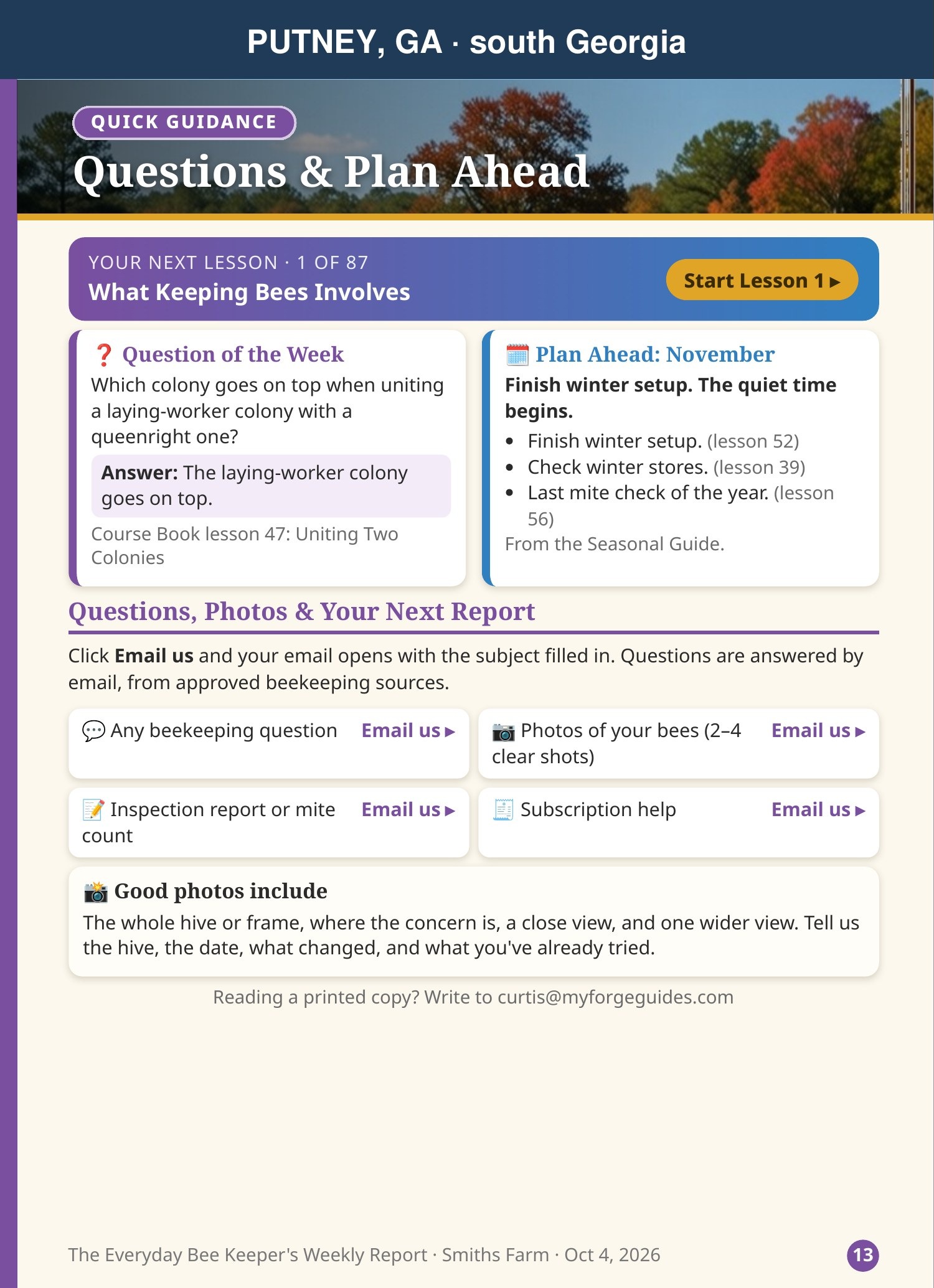
❓ Questions & Plan Ahead
Shows: the Question of the Week and its answer, what to get ready for next month, and Email us buttons for questions, photos, reports and subscription help.
Do: check the plan-ahead list so nothing sneaks up on you.
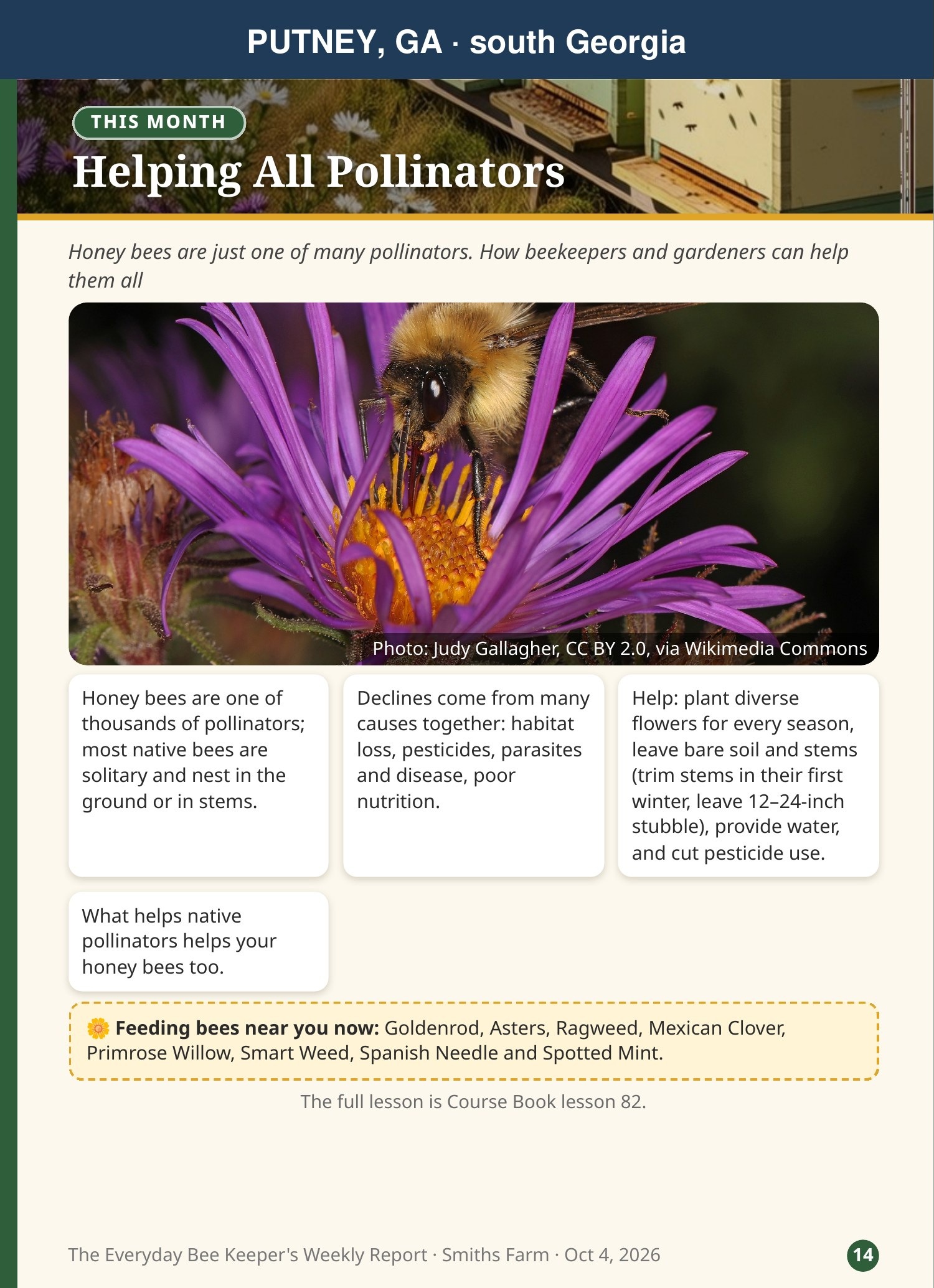
🦋 Helping All Pollinators
Shows: the other pollinators around you, and simple ways to help them.
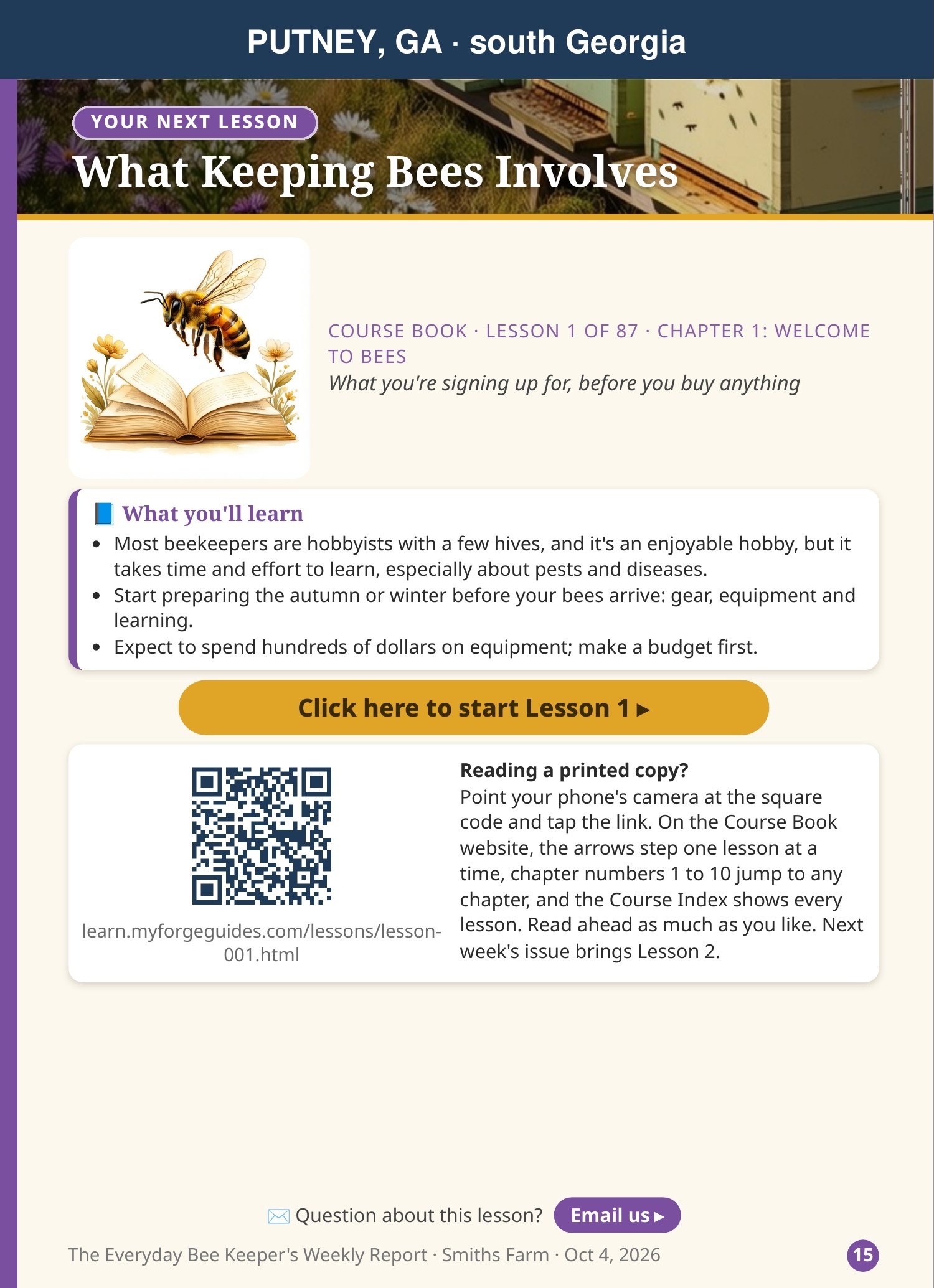
🎓 Your Next Lesson
Shows: this week's Course Book lesson: what you'll learn, plus a button and a QR code to open the full lesson.
Do: tap Click here to start, or point your phone's camera at the QR code on a printed copy. More in section G.
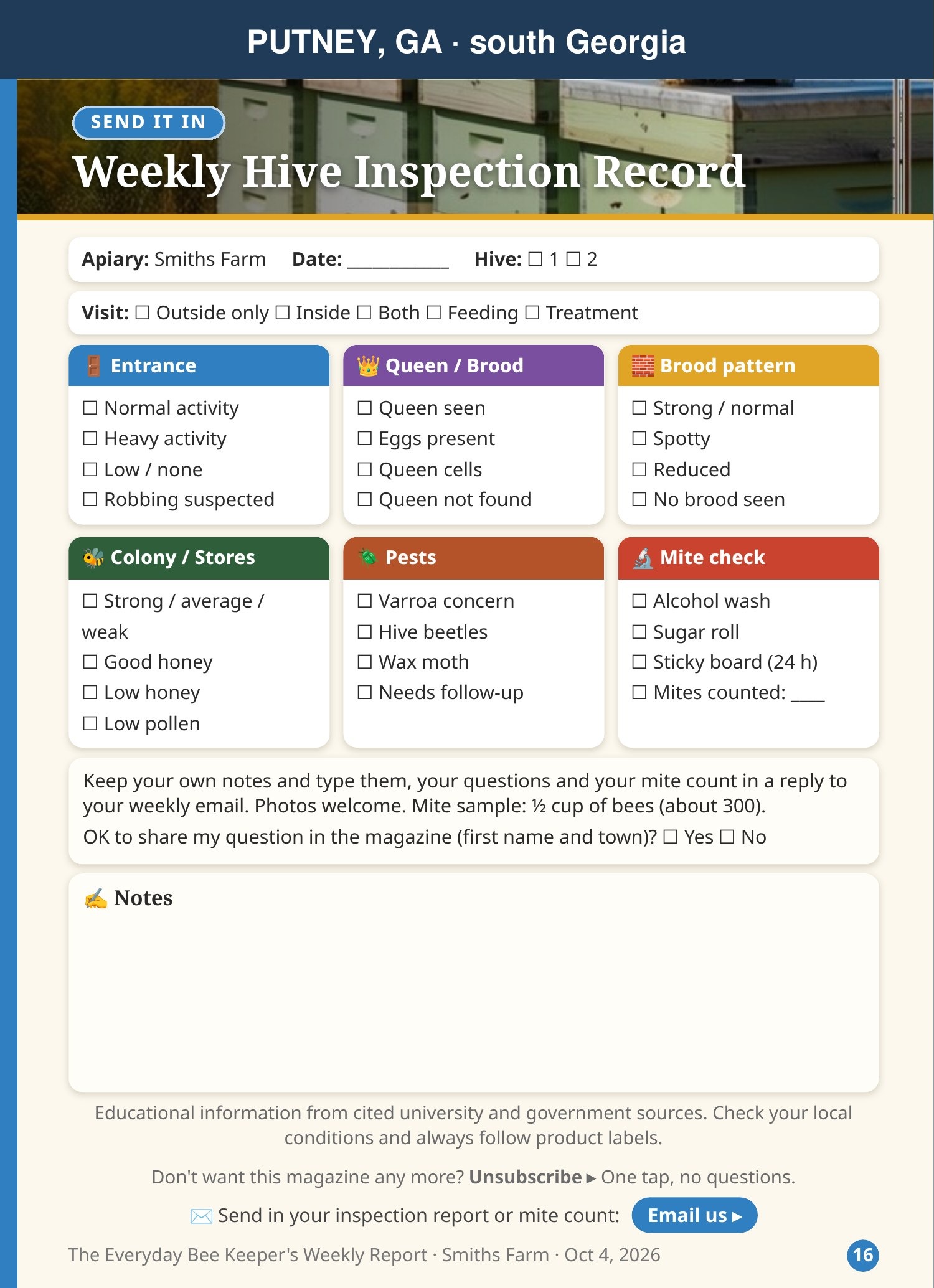
📝 Weekly Hive Inspection Record
Shows: a checklist to take to the hive: entrance, queen and brood, brood pattern, colony and stores, pests, mite check, and notes.
Do: see section E.
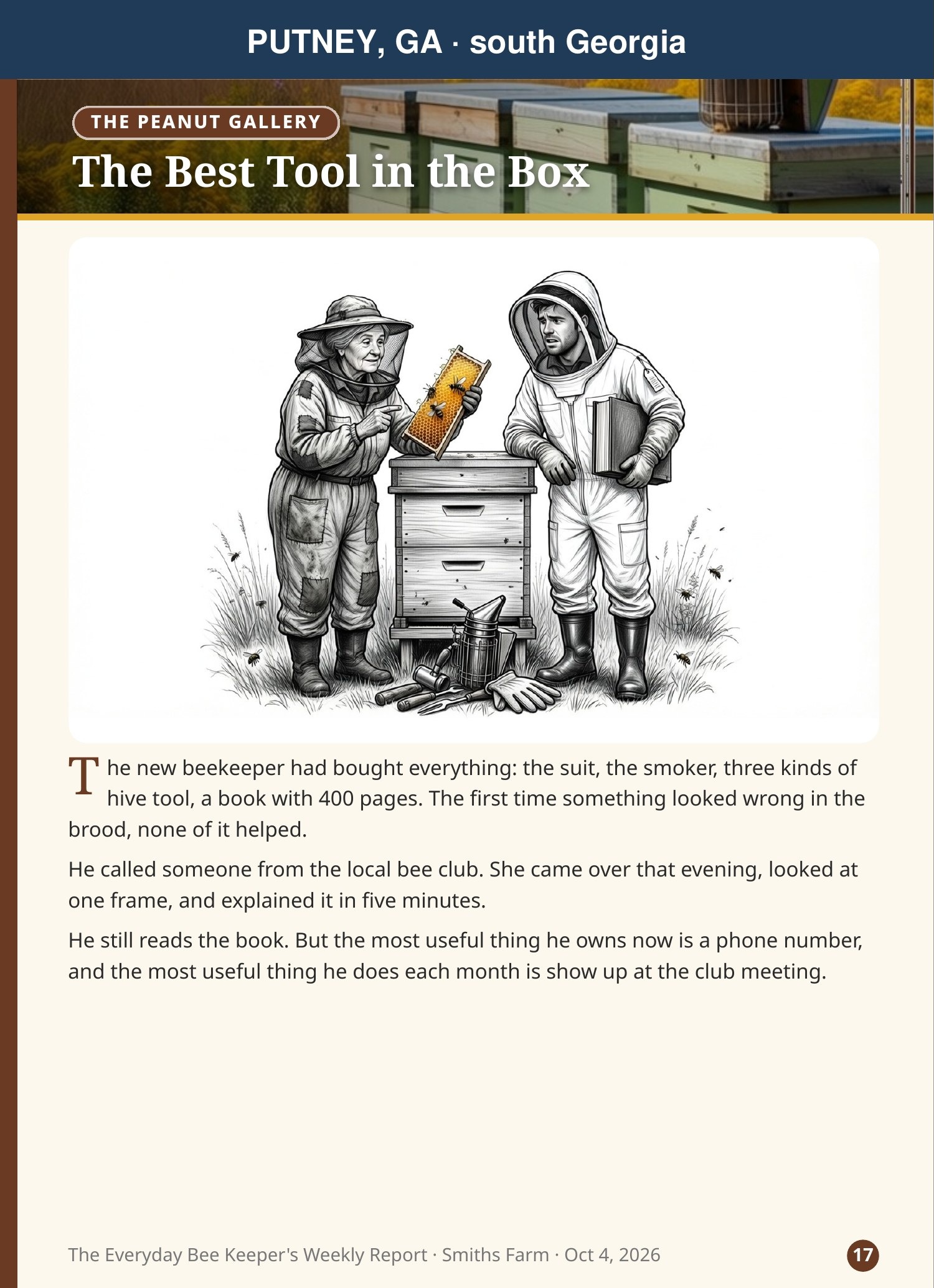
😄 The Peanut Gallery
Shows: a short beekeeping story to end the week. Enjoy it!
DSending a hive report from your phone
The first time (with signal)
- In your Friday email, tap the green "Send in your report from your phone" link. (Or scan the QR code on your paper Inspection Record.)
- Your own report page opens, already set up with your apiary and hives. No sign-in.
- In your browser's menu, tap Add to Home screen. Now you have a one-tap icon, and the page works even with no signal.
At the hive, every time
- Open your report page (your home-screen icon).
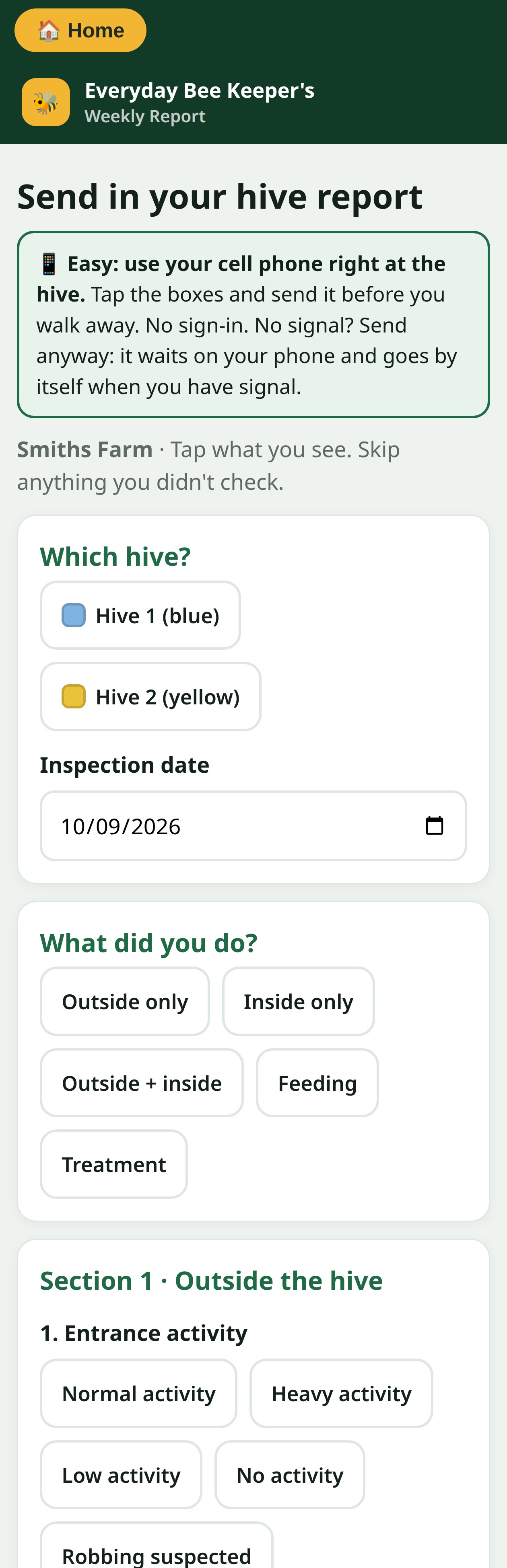
- Which hive? Tap the hive. Check the date.
- What did you do? Outside only, inside, feeding or treatment.
- Section 1 · Outside: tap what you saw at the entrance, the equipment, temperament, weather, pests and feeding.
- Section 2 · Inside: queen and brood, brood pattern, colony and stores, pests.
- Skip anything you didn't check. For notes, tap the 🎤 microphone on your keyboard and just talk.
- Tap Send my report ▸. Then Report another hive for the next one.
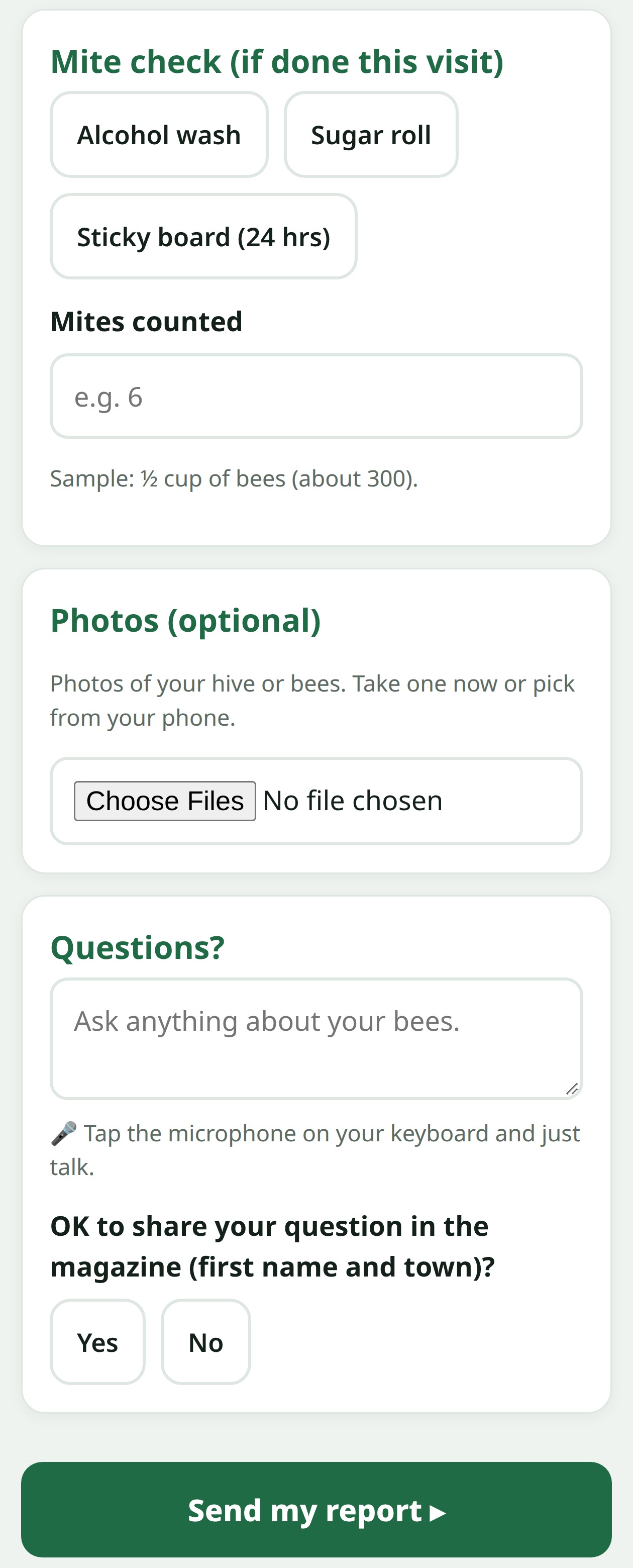
Mite check, photos and questions
- Mite check: pick alcohol wash, sugar roll or sticky board (24 hrs), and type how many mites you counted. Use a sample of ½ cup of bees (about 300).
- Photos: take one now or pick from your phone.
- Questions: type or talk. Say Yes or No to sharing it in the magazine (first name and town only).
EUsing the paper Inspection Record
- Print the Weekly Hive Inspection Record page from your report.
- At the hive, fill in the date and hive, then tick what you see in each colored box.
- Write your mite count and any notes.
- Back inside, either scan the QR code to fill in your phone report, or reply to your Friday email with what you ticked.
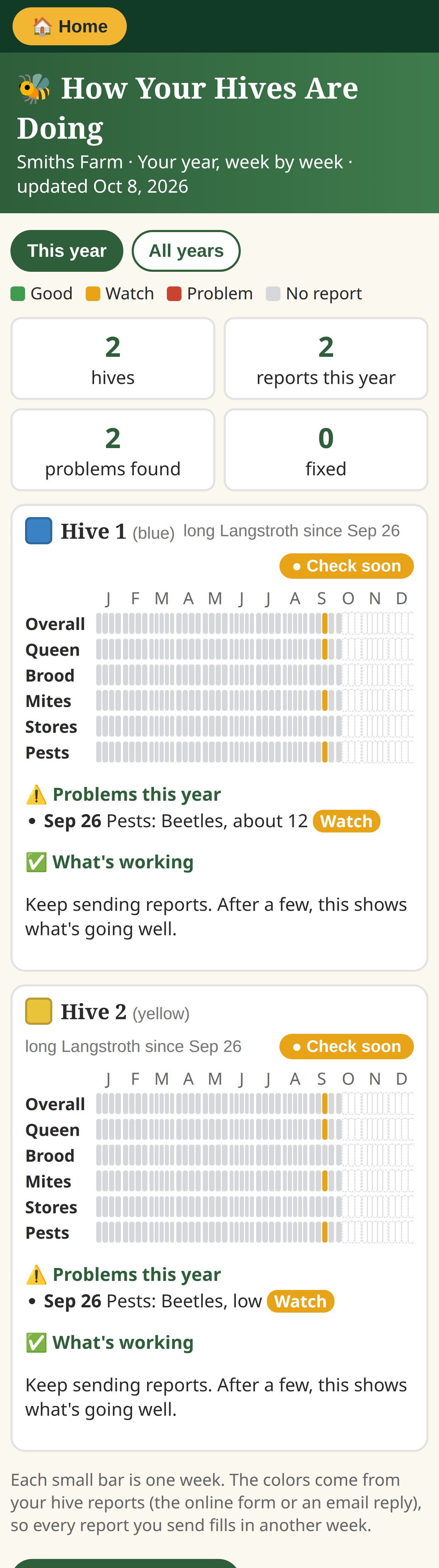
FSeeing how your hives are doing
- In your Friday email, tap How Your Hives Are Doing.
- At the top, choose This year or All years.
- The top boxes count your hives, the reports you sent this year, and problems found and fixed.
- Each hive has a color grid: one column per week, one row each for Overall, Queen, Brood, Mites, Stores and Pests.
- Under the grid: Problems this year and What's working.
Green = good · Gold = watch · Red = problem · Empty = no report that week.
GYour lessons, quizzes and practice exam
Your weekly lesson
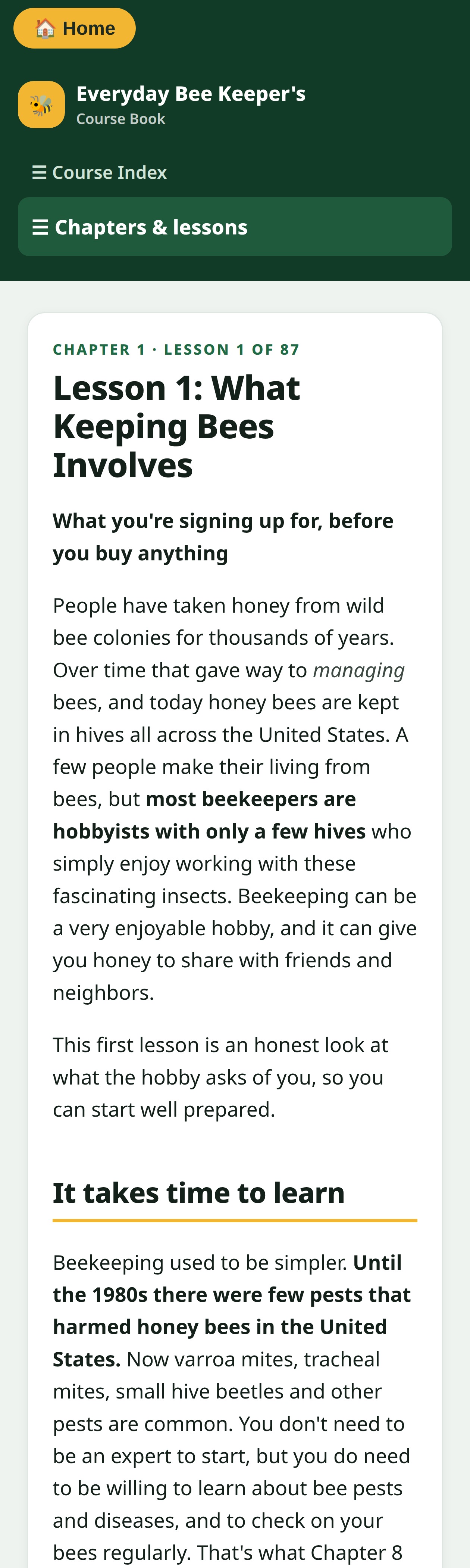
- Open Your Next Lesson in your report and tap Click here to start.
- Read: what you'll learn, the lesson, what to remember, then try the quick check.
- Next Friday brings the next lesson, at your level.
Browse any time
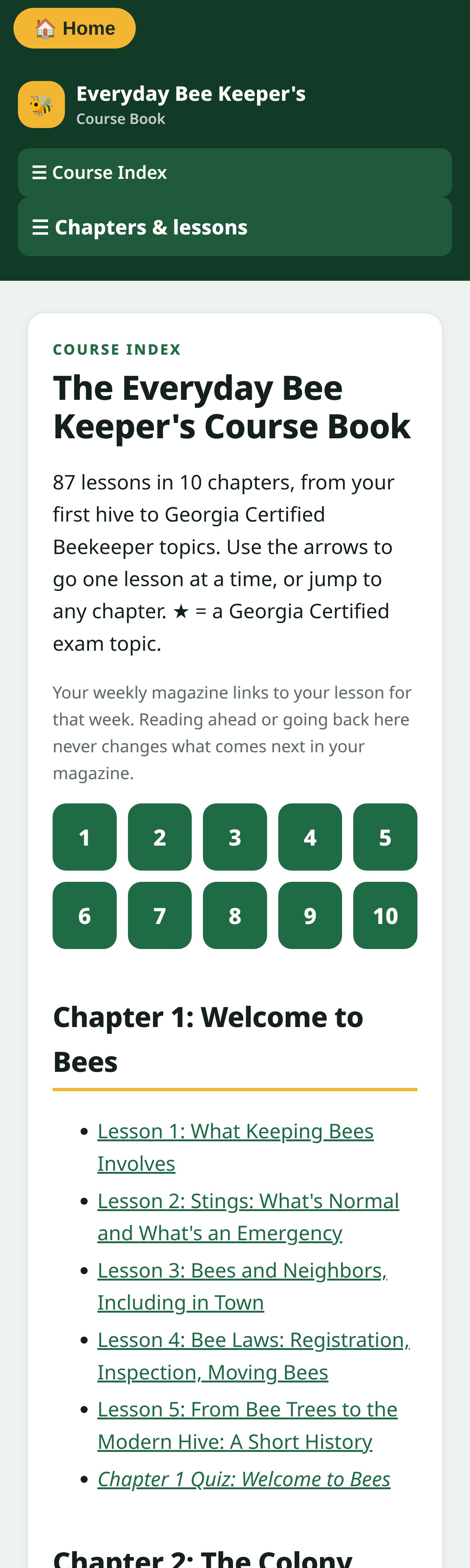
- Go to learn.myforgeguides.com. Jump to any chapter, or tap the numbers 1 to 10 to go straight to a chapter.
- Read ahead as much as you like. It doesn't change your weekly order.
- Each chapter ends with a quiz. Answers are behind a Show answers button.
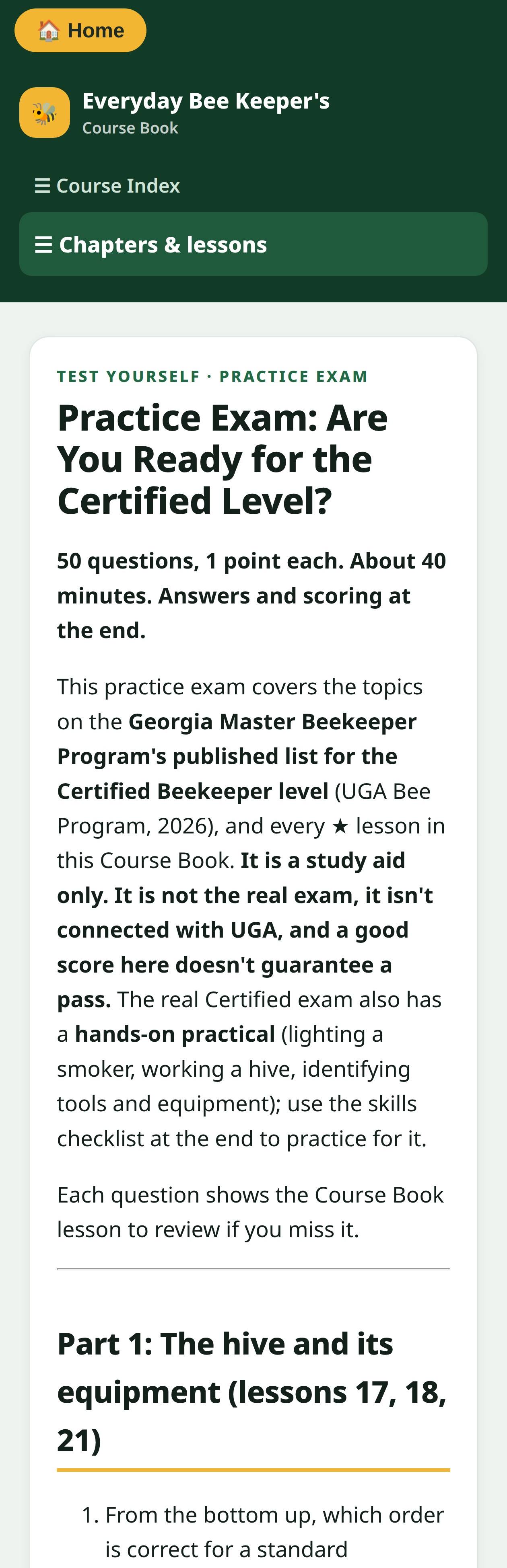
- The Practice Exam has 50 questions on Georgia Certified Beekeeper topics. It's a study aid, not the real exam.
- Every lesson lists its sources at the bottom.
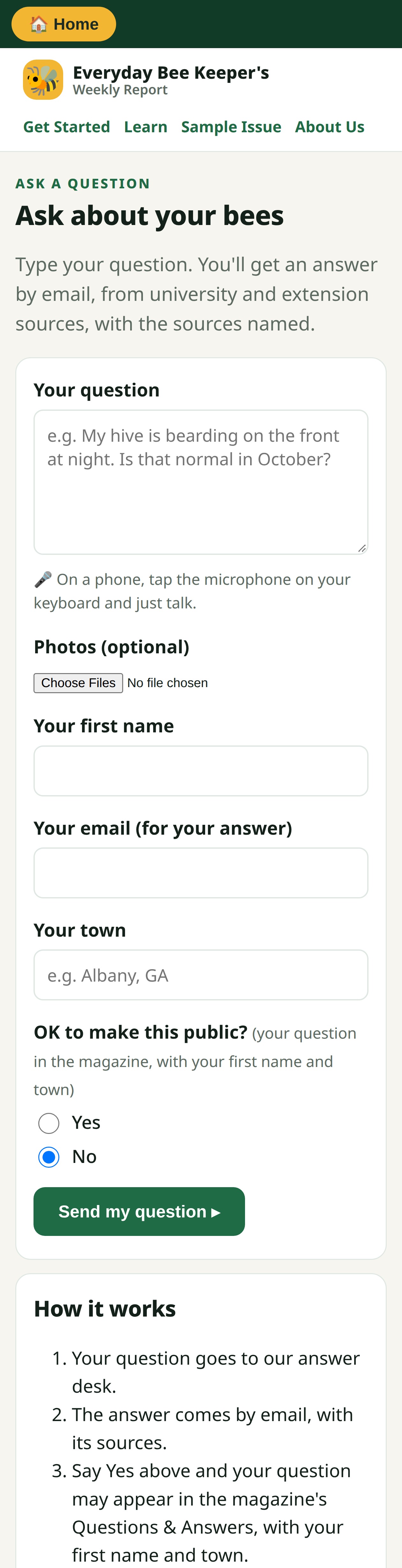
HAsking a question
- Go to myforgeguides.com/ask, use the link in your Friday email, or tap Email us in your report.
- Type your question. On a phone, tap the 🎤 microphone on your keyboard and just talk.
- Add photos if they help (the whole frame, a close view, and one wider view).
- Type your first name, email and town.
- OK to make this public? Yes lets us print it in Questions & Answers with your first name and town. No keeps it private.
- Tap Send my question ▸. Your answer comes by email, with its sources.
IYour account
| I want to… | How |
|---|---|
| Share it with my family | One price covers everyone at your address. Forward the email or print it. |
| Add or remove a hive | Tap Email us and tell us. Up to 10 hives are included. |
| Change my email or address | Tap Email us (subscription help) and tell us the change. |
| Switch monthly ↔ yearly | Tap Email us. Yearly saves you two months. |
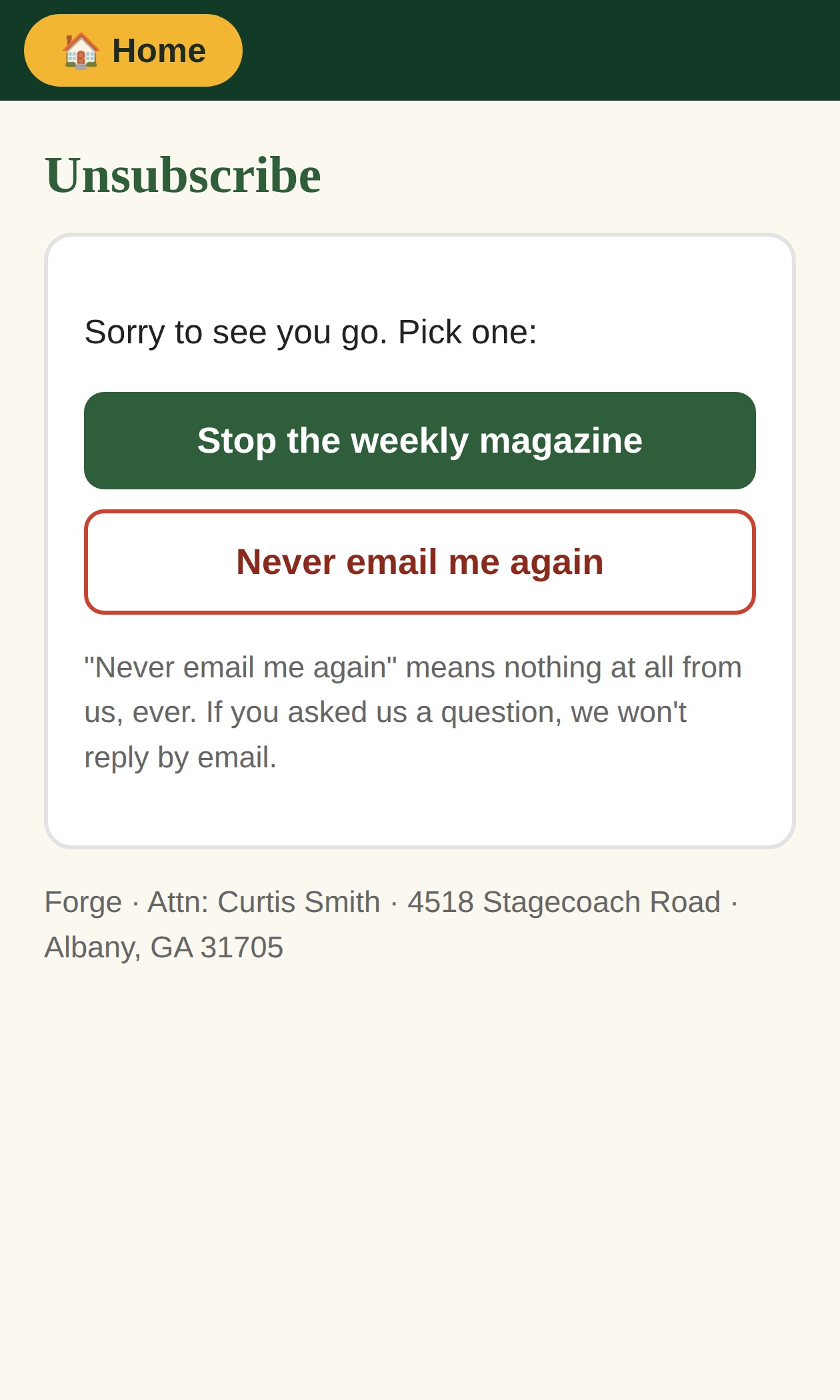
| Stop the report | Tap Unsubscribe at the bottom of any email, then Stop the weekly magazine. One tap, no questions. |
| Never hear from us again | Tap Never email me again. That means nothing at all, including answers to questions. |
Want it back later? Just email curtis@myforgeguides.com.
JIf something isn't working
| Problem | Try this |
|---|---|
| No report on Friday | Check your junk or spam folder, and add curtis@myforgeguides.com to your contacts. Still missing? Email us. |
| A hive's report card is empty | We didn't get a report for that hive that week. Send one, and next week's will be filled in. |
| Report page won't open at the hive | Open it once where you have signal and tap Add to Home screen. After that it works with no signal. |
| My report didn't send | It's waiting on your phone. It sends by itself when you have signal; just open the page again later. |
| Pages look too small on my phone | Turn the phone sideways, or use the 🔍 Zoom button on sample pages. |
| Something in the report looks wrong | Tell us. Every page names its sources, and we correct mistakes. See Corrections at the bottom of the website. |
| Anything else | Email curtis@myforgeguides.com. |